ROCm Tools
HCC
HCC is an Open Source, Optimizing C++ Compiler for Heterogeneous Compute
This repository hosts the HCC compiler implementation project. The goal is to implement a compiler that takes a program that conforms to a parallel programming standard such as C++ AMP, HC, C++ 17 ParallelSTL, or OpenMP, and transforms it into the AMD GCN ISA.
The project is based on LLVM+CLANG. For more information, please visit the HCC WIKI
Download HCC
The project now employs git submodules to manage external components it depends upon. It it advised to add –recursive when you clone the project so all submodules are fetched automatically.
For example:
# automatically fetches all submodules
git clone --recursive -b clang_tot_upgrade https://github.com/RadeonOpenCompute/hcc.git
For more information about git submodules, please refer to git documentation.
Build HCC from source
To configure and build HCC from source, use the following steps:
mkdir -p build; cd build
cmake -DCMAKE_BUILD_TYPE=Release ..
make
To install it, use the following steps:
sudo make install
Use HCC
For C++AMP source codes:
hcc `clamp-config --cxxflags --ldflags` foo.cpp
WARNING: From ROCm version 2.0 onwards C++AMP is no longer available in HCC.
For HC source codes:
hcc `hcc-config --cxxflags --ldflags` foo.cpp
In case you build HCC from source and want to use the compiled binaries directly in the build directory:
For C++AMP source codes:
# notice the --build flag
bin/hcc `bin/clamp-config --build --cxxflags --ldflags` foo.cpp
WARNING: From ROCm version 2.0 onwards C++AMP is no longer available in HCC.
For HC source codes:
# notice the --build flag
bin/hcc `bin/hcc-config --build --cxxflags --ldflags` foo.cpp
Multiple ISA
HCC now supports having multiple GCN ISAs in one executable file. You can do it in different ways: use ``–amdgpu-target=`` command line option
It’s possible to specify multiple `` –amdgpu-target= `` option.
Example:
# ISA for Hawaii(gfx701), Carrizo(gfx801), Tonga(gfx802) and Fiji(gfx803) would
# be produced
 hcc `hcc-config --cxxflags --ldflags` \
   --amdgpu-target=gfx701 \
   --amdgpu-target=gfx801 \
   --amdgpu-target=gfx802 \
   --amdgpu-target=gfx803 \
   foo.cpp
use ``HCC_AMDGPU_TARGET`` env var
use , to delimit each AMDGPU target in HCC. Example:
export HCC_AMDGPU_TARGET=gfx701,gfx801,gfx802,gfx803
# ISA for Hawaii(gfx701), Carrizo(gfx801), Tonga(gfx802) and Fiji(gfx803) would
# be produced
hcc `hcc-config --cxxflags --ldflags` foo.cpp
configure HCC use CMake ``HSA_AMDGPU_GPU_TARGET`` variable
If you build HCC from source, it’s possible to configure it to automatically produce multiple ISAs via HSA_AMDGPU_GPU_TARGET CMake variable.
Use ; to delimit each AMDGPU target.
Example:
# ISA for Hawaii(gfx701), Carrizo(gfx801), Tonga(gfx802) and Fiji(gfx803) would
# be produced by default
cmake \
   -DCMAKE_BUILD_TYPE=Release \
   -DROCM_DEVICE_LIB_DIR=~hcc/ROCm-Device-Libs/build/dist/lib \
   -DHSA_AMDGPU_GPU_TARGET="gfx701;gfx801;gfx802;gfx803" \
   ../hcc
CodeXL Activity Logger
To enable the CodeXL Activity Logger, use the USE_CODEXL_ACTIVITY_LOGGER environment variable.
Configure the build in the following way:
cmake \
  -DCMAKE_BUILD_TYPE=Release \
  -DHSA_AMDGPU_GPU_TARGET=<AMD GPU ISA version string> \
  -DROCM_DEVICE_LIB_DIR=<location of the ROCm-Device-Libs bitcode> \
  -DUSE_CODEXL_ACTIVITY_LOGGER=1 \
  <ToT HCC checkout directory>
In your application compiled using hcc, include the CodeXL Activiy Logger header:
#include <CXLActivityLogger.h>
For information about the usage of the Activity Logger for profiling, please refer to its documentation.
HCC with ThinLTO Linking
To enable the ThinLTO link time, use the KMTHINLTO environment variable.
Set up your environment in the following way:
export KMTHINLTO=1
ThinLTO Phase 1 - Implemented
For applications compiled using hcc, ThinLTO could significantly improve link-time performance. This implementation will maintain kernels in their .bc file format, create module-summaries for each, perform llvm-lto’s cross-module function importing and then perform clamp-device (which uses opt and llc tools) on each of the kernel files. These files are linked with lld into one .hsaco per target specified.
ThinLTO Phase 2 - Under development This ThinLTO implementation which will use llvm-lto LLVM tool to replace clamp-device bash script. It adds an optllc option into ThinLTOGenerator, which will perform in-program opt and codegen in parallel.
GCN Assembler and Disassembler
The ability to write code in assembly is essential to achieving the best performance for a GPU program. In a previous blog we described how to combine several languages in a single program using ROCm and Hsaco. This article explains how to produce Hsaco from assembly code and also takes a closer look at some new features of the GCN architecture. I’d like to thank Ilya Perminov of Luxsoft for co-authoring this blog post. Programs written for GPUs should achieve the highest performance possible. Even carefully written ones, however, won’t always employ 100% of the GPU’s capabilities. Some reasons are the following:
The program may be written in a high level language that does not expose all of the features available on the hardware.
The compiler is unable to produce optimal ISA code, either because the compiler needs to ‘play it safe’ while adhering to the semantics of a language or because the compiler itself is generating un-optimized code.
Consider a program that uses one of GCN’s new features (source code is available on GitHub). Recent hardware architecture updates—DPP and DS Permute instructions—enable efficient data sharing between wavefront lanes. To become more familiar with the instruction set, review the GCN ISA Reference Guide. Note: the assembler is currently experimental; some of syntax we describe may change.
Two new instructions, ds_permute_b32 and ds_bpermute_b32, allow VGPR data to move between lanes on the basis of an index from another VGPR. These instructions use LDS hardware to route data between the 64 lanes, but they don’t write to LDS memory. The difference between them is what to index: the source-lane ID or the destination-lane ID. In other words, ds_permute_b32 says “put my lane data in lane i,” and ds_bpermute_b32 says “read data from lane i.” The GCN ISA Reference Guide provides a more formal description. The test kernel is simple: read the initial data and indices from memory into GPRs, do the permutation in the GPRs and write the data back to memory. An analogous OpenCL kernel would have this form:
__kernel void hello_world(__global const uint * in, __global const uint * index, __global uint * out)
{
    size_t i = get_global_id(0);
    out[i] = in[ index[i] ];
}
Formal HSA arguments are passed to a kernel using a special read-only memory segment called kernarg. Before a wavefront starts, the base address of the kernarg segment is written to an SGPR pair. The memory layout of variables in kernarg must employ the same order as the list of kernel formal arguments, starting at offset 0, with no padding between variables—except to honor the requirements of natural alignment and any align qualifier. The example host program must create the kernarg segment and fill it with the buffer base addresses. The HSA host code might look like the following:
/*
* This is the host-side representation of the kernel arguments that the simplePermute kernel expects.
*/
struct simplePermute_args_t {
      uint32_t * in;
      uint32_t * index;
      uint32_t * out;
};
/*
 * Allocate the kernel-argument buffer from the correct region.
*/
hsa_status_t status;
simplePermute_args_t * args = NULL;
status = hsa_memory_allocate(kernarg_region, sizeof(simplePermute_args_t), (void**)(&args));
assert(HSA_STATUS_SUCCESS == status);
aql->kernarg_address = args;
/*
* Write the args directly to the kernargs buffer;
* the code assumes that memory is already allocated for the
* buffers that in_ptr, index_ptr and out_ptr point to
*/
args->in = in_ptr;
args->index = index_ptr;
args->out = out_ptr;
The host program should also allocate memory for the in, index and out buffers. In the GitHub repository, all the run-time-related stuff is hidden in the Dispatch and Buffer classes, so the sample code looks much cleaner:
// Create Kernarg segment
if (!AllocateKernarg(3 * sizeof(void*))) { return false; }

// Create buffers
Buffer *in, *index, *out;
in = AllocateBuffer(size);
index = AllocateBuffer(size);
out = AllocateBuffer(size);

// Fill Kernarg memory
Kernarg(in); // Add base pointer to “in” buffer
Kernarg(index); // Append base pointer to “index” buffer
Kernarg(out); // Append base pointer to “out” buffer
Initial Wavefront and Register State To launch a kernel in real hardware, the run time needs information about the kernel, such as
The LDS size
The number of GPRs
Which registers need initialization before the kernel starts
All this data resides in the amd_kernel_code_t structure. A full description of the structure is available in the AMDGPU-ABI specification. This is what it looks like in source code:
.hsa_code_object_version 2,0
.hsa_code_object_isa 8, 0, 3, "AMD", "AMDGPU"

.text
.p2align 8
.amdgpu_hsa_kernel hello_world

hello_world:

.amd_kernel_code_t
enable_sgpr_kernarg_segment_ptr = 1
is_ptr64 = 1
compute_pgm_rsrc1_vgprs = 1
compute_pgm_rsrc1_sgprs = 0
compute_pgm_rsrc2_user_sgpr = 2
kernarg_segment_byte_size = 24
wavefront_sgpr_count = 8
workitem_vgpr_count = 5
.end_amd_kernel_code_t

s_load_dwordx2  s[4:5], s[0:1], 0x10
s_load_dwordx4  s[0:3], s[0:1], 0x00
v_lshlrev_b32  v0, 2, v0
s_waitcnt     lgkmcnt(0)
v_add_u32     v1, vcc, s2, v0
v_mov_b32     v2, s3
v_addc_u32    v2, vcc, v2, 0, vcc
v_add_u32     v3, vcc, s0, v0
v_mov_b32     v4, s1
v_addc_u32    v4, vcc, v4, 0, vcc
flat_load_dword  v1, v[1:2]
flat_load_dword  v2, v[3:4]
s_waitcnt     vmcnt(0) & lgkmcnt(0)
v_lshlrev_b32  v1, 2, v1
ds_bpermute_b32  v1, v1, v2
v_add_u32     v3, vcc, s4, v0
v_mov_b32     v2, s5
v_addc_u32    v4, vcc, v2, 0, vcc
s_waitcnt     lgkmcnt(0)
flat_store_dword  v[3:4], v1
s_endpgm
Currently, a programmer must manually set all non-default values to provide the necessary information. Hopefully, this situation will change with new updates that bring automatic register counting and possibly a new syntax to fill that structure. Before the start of every wavefront execution, the GPU sets up the register state on the basis of the enable_sgpr_* and enable_vgpr_* flags. VGPR v0 is always initialized with a work-item ID in the x dimension. Registers v1 and v2 can be initialized with work-item IDs in the y and z dimensions, respectively. Scalar GPRs can be initialized with a work-group ID and work-group count in each dimension, a dispatch ID, and pointers to kernarg, the aql packet, the aql queue, and so on. Again, the AMDGPU-ABI specification contains a full list in in the section on initial register state. For this example, a 64-bit base kernarg address will be stored in the s[0:1] registers (enable_sgpr_kernarg_segment_ptr = 1), and the work-item thread ID will occupy v0 (by default). Below is the scheme showing initial state for our kernel. initial_state
The next amd_kernel_code_t fields are obvious: is_ptr64 = 1 says we are in 64-bit mode, and kernarg_segment_byte_size = 24 describes the kernarg segment size. The GPR counting is less straightforward, however. The workitem_vgpr_count holds the number of vector registers that each work item uses, and wavefront_sgpr_count holds the number of scalar registers that a wavefront uses. The code above employs v0–v4, so workitem_vgpr_count = 5. But wavefront_sgpr_count = 8 even though the code only shows s0–s5, since the special registers VCC, FLAT_SCRATCH and XNACK are physically stored as part of the wavefront’s SGPRs in the highest-numbered SGPRs. In this example, FLAT_SCRATCH and XNACK are disabled, so VCC has only two additional registers. In current GCN3 hardware, VGPRs are allocated in groups of 4 registers and SGPRs in groups of 16. Previous generations (GCN1 and GCN2) have a VGPR granularity of 4 registers and an SGPR granularity of 8 registers. The fields compute_pgm_rsrc1_*gprs contain a device-specific number for each register-block type to allocate for a wavefront. As we said previously, future updates may enable automatic counting, but for now you can use following formulas for all three GCN GPU generations:
compute_pgm_rsrc1_vgprs = (workitem_vgpr_count-1)/4

compute_pgm_rsrc1_sgprs = (wavefront_sgpr_count-1)/8
Now consider the corresponding assembly:
// initial state:
//   s[0:1] - kernarg base address
//   v0 - workitem id

s_load_dwordx2  s[4:5], s[0:1], 0x10  // load out_ptr into s[4:5] from kernarg
s_load_dwordx4  s[0:3], s[0:1], 0x00  // load in_ptr into s[0:1] and index_ptr into s[2:3] from kernarg
v_lshlrev_b32  v0, 2, v0              // v0 *= 4;
s_waitcnt     lgkmcnt(0)              // wait for memory reads to finish

// compute address of corresponding element of index buffer
// i.e. v[1:2] = &index[workitem_id]
v_add_u32     v1, vcc, s2, v0
v_mov_b32     v2, s3
v_addc_u32    v2, vcc, v2, 0, vcc

// compute address of corresponding element of in buffer
// i.e. v[3:4] = &in[workitem_id]
v_add_u32     v3, vcc, s0, v0
v_mov_b32     v4, s1
v_addc_u32    v4, vcc, v4, 0, vcc

flat_load_dword  v1, v[1:2] // load index[workitem_id] into v1
flat_load_dword  v2, v[3:4] // load in[workitem_id] into v2
s_waitcnt     vmcnt(0) & lgkmcnt(0) // wait for memory reads to finish

// v1 *= 4; ds_bpermute_b32 uses byte offset and registers are dwords
v_lshlrev_b32  v1, 2, v1

// perform permutation
// temp[thread_id] = v2
// v1 = temp[v1]
// effectively we got v1 = in[index[thread_id]]
ds_bpermute_b32  v1, v1, v2

// compute address of corresponding element of out buffer
// i.e. v[3:4] = &out[workitem_id]
v_add_u32     v3, vcc, s4, v0
v_mov_b32     v2, s5
v_addc_u32    v4, vcc, v2, 0, vcc

s_waitcnt     lgkmcnt(0) // wait for permutation to finish

// store final value in out buffer, i.e. out[workitem_id] = v1
flat_store_dword  v[3:4], v1

s_endpgm
The next step is to produce a Hsaco from the ASM source. LLVM has added support for the AMDGCN assembler, so you can use Clang to do all the necessary magic:
clang -x assembler -target amdgcn--amdhsa -mcpu=fiji -c -o test.o asm_source.s

clang -target amdgcn--amdhsa test.o -o test.co
The first command assembles an object file from the assembly source, and the second one links everything (you could have multiple source files) into a Hsaco. Now, you can load and run kernels from that Hsaco in a program. The GitHub examples use Cmake to automatically compile ASM sources. In a future post we will cover DPP, another GCN cross-lane feature that allows vector instructions to grab operands from a neighboring lane.
GCN Assembler Tools
This repository contains the following useful items related to AMDGPU ISA assembler:
amdphdrs: utility to convert ELF produced by llvm-mc into AMD Code Object (v1)
examples/asm-kernel: example of AMDGPU kernel code
examples/gfx8/ds_bpermute: transfer data between lanes in a wavefront with ds_bpermute_b32
examples/gfx8/dpp_reduce: calculate prefix sum in a wavefront with DPP instructions
examples/gfx8/s_memrealtime: use s_memrealtime instruction to create a delay
examples/gfx8/s_memrealtime_inline: inline assembly in OpenCL kernel version of s_memrealtime
examples/api/assemble: use LLVM API to assemble a kernel
examples/api/disassemble: use LLVM API to disassemble a stream of instructions
bin/sp3_to_mc.pl: script to convert some AMD sp3 legacy assembler syntax into LLVM MC
examples/sp3: examples of sp3 convertable code
At the time of this writing (February 2016), LLVM trunk build and latest ROCR runtime is needed.
LLVM trunk (May or later) now uses lld as linker and produces AMD Code Object (v2).
Top-level CMakeLists.txt is provided to build everything included. The following CMake variables should be set:
HSA_DIR (default /opt/hsa/bin): path to ROCR Runtime
LLVM_DIR: path to LLVM build directory
To build everything, create build directory and run cmake and make:
mkdir build
cd build
cmake -DLLVM_DIR=/srv/git/llvm.git/build ..
make
Examples that require clang will only be built if clang is built as part of llvm.
Assembling to code object with llvm-mc from command line
The following llvm-mc command line produces ELF object asm.o from assembly source asm.s:
llvm-mc -arch=amdgcn -mcpu=fiji -filetype=obj -o asm.o asm.s
Assembling to raw instruction stream with llvm-mc from command line
It is possible to extract contents of .text section after assembling to code object:
llvm-mc -arch=amdgcn -mcpu=fiji -filetype=obj -o asm.o asm.s
objdump -h asm.o | grep .text | awk '{print "dd if='asm.o' of='asm' bs=1 count=$[0x" $3 "] skip=$[0x" $6 "]"}' | bash
Disassembling code object from command line
The following command line may be used to dump contents of code object:
llvm-objdump -disassemble -mcpu=fiji asm.o
This includes text disassembly of .text section.
Disassembling raw instruction stream from command line
The following command line may be used to disassemble raw instruction stream (without ELF structure):
hexdump -v -e '/1 "0x%02X "' asm | llvm-mc -arch=amdgcn -mcpu=fiji -disassemble
Here, hexdump is used to display contents of file in hexadecimal (0x.. form) which is then consumed by llvm-mc.
Refer to examples/api/assemble.
Refer to examples/api/disassemble.
Using amdphdrs
Note that normally standard lld and Code Object version 2 should be used which is closer to standard ELF format.
amdphdrs (now obsolete) is complimentary utility that can be used to produce AMDGPU Code Object version 1. For example, given assembly source in asm.s, the following will assemble it and link using amdphdrs:
llvm-mc -arch=amdgcn -mcpu=fiji -filetype=obj -o asm.o asm.s
andphdrs asm.o asm.co
Macro support
SP3 supports proprietary set of macros/tools. sp3_to_mc.pl script attempts to translate them into GAS syntax understood by llvm-mc. flat_atomic_cmpswap instruction has 32-bit destination
LLVM AMDGPU:
flat_atomic_cmpswap v7, v[9:10], v[7:8]
SP3:
flat_atomic_cmpswap v[7:8], v[9:10], v[7:8]
Atomic instructions that return value should have glc flag explicitly
LLVM AMDGPU:
flat_atomic_swap_x2 v[0:1], v[0:1], v[2:3] glc
SP3:
flat_atomic_swap_x2 v[0:1], v[0:1], v[2:3]
ROC Profiler
ROC profiler library. Profiling with perf-counters and derived metrics. Library supports GFX8/GFX9.
HW specific low-level performance analysis interface for profiling of GPU compute applications. The profiling includes HW performance counters with complex performance metrics and HW traces.
- Profiling tool ‘rocprof’:
Cmd-line tool for dumping public per kernel perf-counters/metrics and kernel timestamps
Input file with counters list and kernels selecting parameters
Multiple counters groups and app runs supported
Kernel execution is serialized
HSA API/activity stats and tracing
Output results in CSV and JSON chrome tracing formats
Download
To clone ROC Profiler from GitHub use the folowing command:
git clone https://github.com/ROCm-Developer-Tools/rocprofiler
The library source tree:
- bin
rocprof - Profiling tool run script
doc - Documentation
inc/rocprofiler.h - Library public API
- src - Library sources
core - Library API sources
util - Library utils sources
xml - XML parser
- test - Library test suite
- tool - Profiling tool
tool.cpp - tool sources
metrics.xml - metrics config file
ctrl - Test controll
util - Test utils
simple_convolution - Simple convolution test kernel
Build
Build environment:
export CMAKE_PREFIX_PATH=<path to hsa-runtime includes>:<path to hsa-runtime library>
export CMAKE_BUILD_TYPE=<debug|release> # release by default
export CMAKE_DEBUG_TRACE=1 # to enable debug tracing
To configure, build, install to /opt/rocm/rocprofiler:
mkdir -p build
cd build
export CMAKE_PREFIX_PATH=/opt/rocm
cmake -DCMAKE_INSTALL_PREFIX=/opt/rocm ..
make
sudo make install
To test the built library:
cd build
./run.sh
To enable error messages logging to ‘/tmp/rocprofiler_log.txt’:
export ROCPROFILER_LOG=1
To enable verbose tracing:
export ROCPROFILER_TRACE=1
Profiling Tool ‘rocprof’ Usage
The following shows the command-line usage of the ‘rocprof’ tool:
rocprof [-h] [--list-basic] [--list-derived] [-i <input .txt/.xml file>] [-o <output CSV file>] <app command line>

Options:
-h - this help
--verbose - verbose mode, dumping all base counters used in the input metrics
--list-basic - to print the list of basic HW counters
--list-derived - to print the list of derived metrics with formulas

-i <.txt|.xml file> - input file
    Input file .txt format, automatically rerun application for every pmc line:

      # Perf counters group 1
      pmc : Wavefronts VALUInsts SALUInsts SFetchInsts FlatVMemInsts LDSInsts FlatLDSInsts GDSInsts VALUUtilization FetchSize
      # Perf counters group 2
      pmc : WriteSize L2CacheHit
      # Filter by dispatches range, GPU index and kernel names
      # supported range formats: "3:9", "3:", "3"
      range: 1 : 4
      gpu: 0 1 2 3
      kernel: simple Pass1 simpleConvolutionPass2

    Input file .xml format, for single profiling run:

      # Metrics list definition, also the form "<block-name>:<event-id>" can be used
      # All defined metrics can be found in the 'metrics.xml'
      # There are basic metrics for raw HW counters and high-level metrics for derived counters
      <metric name=SQ:4,SQ_WAVES,VFetchInsts
      ></metric>

      # Filter by dispatches range, GPU index and kernel names
      <metric
        # range formats: "3:9", "3:", "3"
        range=""
        # list of gpu indexes "0,1,2,3"
        gpu_index=""
        # list of matched sub-strings "Simple1,Conv1,SimpleConvolution"
        kernel=""
      ></metric>

-o <output file> - output CSV file [<input file base>.csv]
-d <data directory> - directory where profiler store profiling data including thread treaces [/tmp]
    The data directory is renoving autonatically if the directory is matching the temporary one, which is the default.
-t <temporary directory> - to change the temporary directory [/tmp]
    By changing the temporary directory you can prevent removing the profiling data from /tmp or enable removing from not '/tmp' directory.

--basenames <on|off> - to turn on/off truncating of the kernel full function names till the base ones [off]
--timestamp <on|off> - to turn on/off the kernel disoatches timestamps, dispatch/begin/end/complete [off]
--ctx-limit <max number> - maximum number of outstanding contexts [0 - unlimited]
--heartbeat <rate sec> - to print progress heartbeats [0 - disabled]

--hsa-trace - to trace HSA, generates API execution stats and JSON file viewable in chrome tracing
  Requires to set three options '--hsa-trace --stats --timestamp on'
  Will be simplified to just one option in the next release
  Generated files: <output name>.stats.csv <output name>.hsa_stats.txt <output name>.json

Configuration file:
You can set your parameters defaults preferences in the configuration file 'rpl_rc.xml'. The search path sequence: .:/home/evgeny:<package path>
First the configuration file is looking in the current directory, then in your home, and then in the package directory.
Configurable options: 'basenames', 'timestamp', 'ctx-limit', 'heartbeat'.
An example of 'rpl_rc.xml':
  <defaults
    basenames=off
    timestamp=off
    ctx-limit=0
    heartbeat=0
  ></defaults>
ROCr Debug Agent
The ROCr Debug Agent is a library that can be loaded by ROCm Platform Runtime to provide the following functionality:
Print the state of wavefronts that report memory violation or upon executing a
s_trap 2instruction.Allows SIGINT (
ctrl c) or SIGTERM (kill -15) to print wavefront state of aborted GPU dispatches.It is enabled on Vega10 GPUs on ROCm2.4.
To use the ROCr Debug Agent set the following environment variable:
export HSA_TOOLS_LIB=librocr_debug_agent64.so
This will use the ROCr Debug Agent library installed at /opt/rocm/lib/librocr_debug_agent64.so by default since the ROCm installation adds /opt/rocm/lib to the system library path. To use a different version set the LD_LIBRARY_PATH, for example:
export LD_LIBRARY_PATH=/path_to_directory_containing_librocr_debug_agent64.so
To display the machine code instructions of wavefronts, together with
the source text location, the ROCr Debug Agent uses the llvm-objdump
tool. Ensure that a version that supports AMD GCN GPUs is on your
$PATH. For example, for ROCm 2.4:
export PATH=/opt/rocm/opencl/bin/x86_64/:$PATH
Execute your application.
If the application encounters a GPU error it will display the wavefront
state of the GPU to stdout. Possible error states include:
The GPU executes a memory instruction that causes a memory violation. This is reported as an XNACK error state.
Queue error.
The GPU executes an
S_TRAPinstruction. The__builtin_trap()language builtin can be used to generate aS_TRAP.A SIGINT (
ctrl c) or SIGTERM (kill -15) signal is sent to the application while executing GPU code. Enabled by theROCM_DEBUG_ENABLE_LINUX_SIGNALSenvironment variable.
For example, a sample print out for GPU memory fault is:
Memory access fault by GPU agent: AMD gfx900
Node: 1
Address: 0x18DB4xxx (page not present;write access to a read-only page;)

64 wavefront(s) found in XNACK error state @PC: 0x0000001100E01310
printing the first one:

   EXEC: 0xFFFFFFFFFFFFFFFF
 STATUS: 0x00412460
TRAPSTS: 0x30000000
     M0: 0x00001010

     s0: 0x00C00000    s1: 0x80000010    s2: 0x10000000    s3: 0x00EA4FAC
     s4: 0x17D78400    s5: 0x00000000    s6: 0x01039000    s7: 0x00000000
     s8: 0x00000000    s9: 0x00000000   s10: 0x17D78400   s11: 0x04000000
    s12: 0x00000000   s13: 0x00000000   s14: 0x00000000   s15: 0x00000000
    s16: 0x0103C000   s17: 0x00000000   s18: 0x00000000   s19: 0x00000000
    s20: 0x01037060   s21: 0x00000000   s22: 0x00000000   s23: 0x00000011
    s24: 0x00004000   s25: 0x00010000   s26: 0x04C00000   s27: 0x00000010
    s28: 0xFFFFFFFF   s29: 0xFFFFFFFF   s30: 0x00000000   s31: 0x00000000

Lane 0x0
     v0: 0x00000003    v1: 0x18DB4400    v2: 0x18DB4400    v3: 0x00000000
     v4: 0x00000000    v5: 0x00000000    v6: 0x00700000    v7: 0x00800000
Lane 0x1
     v0: 0x00000004    v1: 0x18DB4400    v2: 0x18DB4400    v3: 0x00000000
     v4: 0x00000000    v5: 0x00000000    v6: 0x00700000    v7: 0x00800000
Lane 0x2
     v0: 0x00000005    v1: 0x18DB4400    v2: 0x18DB4400    v3: 0x00000000
     v4: 0x00000000    v5: 0x00000000    v6: 0x00700000    v7: 0x00800000
Lane 0x3
     v0: 0x00000006    v1: 0x18DB4400    v2: 0x18DB4400    v3: 0x00000000
     v4: 0x00000000    v5: 0x00000000    v6: 0x00700000    v7: 0x00800000

    .
    .
    .

Lane 0x3C
     v0: 0x0000001F    v1: 0x18DB4400    v2: 0x18DB4400    v3: 0x00000000
     v4: 0x00000000    v5: 0x00000000    v6: 0x00700000    v7: 0x00800000
Lane 0x3D
     v0: 0x00000020    v1: 0x18DB4400    v2: 0x18DB4400    v3: 0x00000000
     v4: 0x00000000    v5: 0x00000000    v6: 0x00700000    v7: 0x00800000
Lane 0x3E
     v0: 0x00000021    v1: 0x18DB4400    v2: 0x18DB4400    v3: 0x00000000
     v4: 0x00000000    v5: 0x00000000    v6: 0x00700000    v7: 0x00800000
Lane 0x3F
     v0: 0x00000022    v1: 0x18DB4400    v2: 0x18DB4400    v3: 0x00000000
     v4: 0x00000000    v5: 0x00000000    v6: 0x00700000    v7: 0x00800000

Faulty Code Object:

/tmp/ROCm_Tmp_PID_5764/ROCm_Code_Object_0:      file format ELF64-amdgpu-hsacobj

Disassembly of section .text:
the_kernel:
; /home/qingchuan/tests/faulty_test/vector_add_kernel.cl:12
; d[100000000] = ga[gid & 31];
        v_mov_b32_e32 v1, v2                                       // 0000000012F0: 7E020302
        v_mov_b32_e32 v4, v3                                       // 0000000012F4: 7E080303
        v_add_i32_e32 v1, vcc, s10, v1                             // 0000000012F8: 3202020A
        v_mov_b32_e32 v5, s22                                      // 0000000012FC: 7E0A0216
        v_addc_u32_e32 v4, vcc, v4, v5, vcc                        // 000000001300: 38080B04
        v_mov_b32_e32 v2, v1                                       // 000000001304: 7E040301
        v_mov_b32_e32 v3, v4                                       // 000000001308: 7E060304
        s_waitcnt lgkmcnt(0)                                       // 00000000130C: BF8CC07F
        flat_store_dword v[2:3], v0                                // 000000001310: DC700000 00000002
; /home/qingchuan/tests/faulty_test/vector_add_kernel.cl:13
; }
        s_endpgm                                                   // 000000001318: BF810000

Faulty PC offset: 1310

Aborted (core dumped)
By default the wavefront dump is sent to stdout.
To save to a file use:
export ROCM_DEBUG_WAVE_STATE_DUMP=file
This will create a file called ROCm_Wave_State_Dump in code object
directory (see below).
To return to the default stdout use either of the following:
export ROCM_DEBUG_WAVE_STATE_DUMP=stdout
unset ROCM_DEBUG_WAVE_STATE_DUMP
The following environment variable can be used to enable dumping
wavefront states when SIGINT (ctrl c) or SIGTERM (kill -15) is
sent to the application:
export ROCM_DEBUG_ENABLE_LINUX_SIGNALS=1
Either of the following will disable this behavior:
export ROCM_DEBUG_ENABLE_LINUX_SIGNALS=0
unset ROCM_DEBUG_ENABLE_LINUX_SIGNALS
When the ROCr Debug Agent is enabled, each GPU code object loaded by the
ROCm Platform Runtime will be saved in a file in the code object
directory. By default the code object directory is
/tmp/ROCm_Tmp_PID_XXXX/ where XXXX is the application process
ID. The code object directory can be specified using the following
environent variable:
export ROCM_DEBUG_SAVE_CODE_OBJECT=code_object_directory
This will use the path /code_object_directory.
Loaded code objects will be saved in files named ROCm_Code_Object_N
where N is a unique integer starting at 0 of the order in which the code
object was loaded.
If the default code object directory is used, then the saved code object file will be deleted when it is unloaded with the ROCm Platform Runtime, and the complete code object directory will be deleted when the application exits normally. If a code object directory path is specified then neither the saved code objects, nor the code object directory will be deleted.
To return to using the default code object directory use:
unset ROCM_DEBUG_SAVE_CODE_OBJECT
By default ROCr Debug Agent logging is disabled. It can be enabled to
display to stdout using:
export ROCM_DEBUG_ENABLE_AGENTLOG=stdout
Or to a file using:
export ROCM_DEBUG_ENABLE_AGENTLOG=<filename>
Which will write to the file <filename>_AgentLog_PID_XXXX.log.
To disable logging use:
unset ROCM_DEBUG_ENABLE_AGENTLOG
ROCm-GDB
The ROCm-GDB is being revised to work with the ROCr Debug Agent to support debugging GPU kernels on Radeon Open Compute platforms (ROCm) and will be available in an upcoming release.
Radeon Compute Profiler
The Radeon Compute Profiler (RCP) is a performance analysis tool that gathers data from the API run-time and GPU for OpenCL™ and ROCm/HSA applications. This information can be used by developers to discover bottlenecks in the application and to find ways to optimize the application’s performance.
Please see the RCP GitHub repository for more information.
ROC Tracer
ROC-tracer library, Runtimes Generic Callback/Activity APIs. The goal of the implementation is to provide a generic independent from specific runtime profiler to trace API and asyncronous activity.
The API provides functionality for registering the runtimes API callbacks and asyncronous activity records pool support.
The library source tree:
inc/roctracer.h - Library public API
- src - Library sources
core - Library API sources
util - Library utils sources
- test - test suit
MatrixTranspose - test based on HIP MatrixTranspose sample
Documentation
- API description: inc/roctracer.h
- Code example: test/MatrixTranspose/MatrixTranspose.cpp
To build and run test
 cd <your path>

- CLone development branches of roctracer and HIP/HCC:
 git clone -b amd-master https://github.com/ROCmSoftwarePlatform/roctracer.git
 git clone -b master https://github.com/ROCm-Developer-Tools/HIP.git
 git clone --recursive -b clang_tot_upgrade https://github.com/RadeonOpenCompute/hcc.git

- Set environment:
 export HIP_PATH=<your path>/HIP
 export HCC_HOME=<your path>/hcc/build
 export CMAKE_PREFIX_PATH=/opt/rocm

- Build HCC:
 cd <your path>/hcc && mkdir build && cd build &&
 cmake -DUSE_PROF_API=1 -DPROF_API_HEADER_PATH=<your path>/roctracer/inc/ext .. && make -j <nproc>

- Build HIP:
 cd <your path>/HIP && mkdir build && cd build &&
 cmake -DUSE_PROF_API=1 -DPROF_API_HEADER_PATH=<your path>/roctracer/inc/ext .. && make -j <nproc>
 ln -s <your path>/HIP/build <your path>/HIP/lib

- Build ROCtracer
 cd <your path>/roctracer && mkdir build && cd build && cmake -DCMAKE_INSTALL_PREFIX=/opt/rocm .. && make -j <nproc>

- To build and run test
 make mytest
 run.sh

- To install
 make install
 or
 make package && dpkg -i *.deb
CodeXL
CodeXL is a comprehensive tool suite that enables developers to harness the benefits of GPUs and APUs. It includes powerful GPU debugging, comprehensive GPU profiling, and static OpenCL™, OpenGL®, Vulkan® and DirectX® kernel/shader analysis capabilities, enhancing accessibility for software developers to enter the era of heterogeneous computing. CodeXL is available as a standalone user interface application for Windows® and Linux®.
Please see the CodeXL GitHub repository for more information.
GPUPerfAPI
The GPU Performance API (GPUPerfAPI, or GPA) is a powerful library, providing access to GPU Performance Counters. It can help analyze the performance and execution characteristics of applications using a Radeon™ GPU. This library is used by Radeon Compute Profiler and CodeXL as well as several third-party tools.
Please see the GPA GitHub repository for more information.
ROCm Binary Utilities
Documentation need to be updated.
MIVisionX
MIVisionX toolkit is a comprehensive computer vision and machine intelligence libraries, utilities and applications bundled into a single toolkit
AMD OpenVX (amd_openvx)
AMD OpenVX is a highly optimized open source implementation of the Khronos OpenVX computer vision specification. It allows for rapid prototyping as well as fast execution on a wide range of computer hardware, including small embedded x86 CPUs and large workstation discrete GPUs.
The amd_openvx project consists of the following components:
OpenVX: AMD OpenVX library
- The OpenVX framework provides a mechanism to add new vision functions to OpenVX by 3rd party vendors. Look into github amd_openvx_extensions folder for additional OpenVX modules and utilities.
vx_nn: OpenVX neural network module that was built on top of MIOpen
vx_loomsl: Radeon LOOM stitching library for live 360 degree video applications
vx_opencv: OpenVX module that implemented a mechanism to access OpenCV functionality as OpenVX kernels
Features
The code is highly optimized for both x86 CPU and OpenCL for GPU
Supported hardware spans the range from low power embedded APUs (like the new G series) to laptop, desktop and workstation graphics
Supports Windows, Linux, and OS X
Includes a “graph optimizer” that looks at the entire processing pipeline and removes/replaces/merges functions to improve performance and minimize bandwidth at runtime
Scripting support allows for rapid prototyping, without re-compiling at production performance levels.
Pre-requisites:
CPU: SSE4.1 or above CPU, 64-bit.
- OpenCV 3 (optional) download for RunVX
Set OpenCV_DIR environment variable to OpenCV/build folder.
Build Instructions
- Build this project to generate AMD OpenVX library and RunVX executable.
Refer to openvx/include/VX for Khronos OpenVX standard header files.
Refer to openvx/include/vx_ext_amd.h for vendor extensions in AMD OpenVX library.
Refer to runvx/README.md for RunVX details.
Refer to runcl/README.md for RunCL details.
Build using Visual Studio Professional 2013 on 64-bit Windows 10/8.1/7
Install OpenCV 3 with contrib download for RunVX tool to support camera capture and image display (optional)
OpenCV_DIR environment variable should point to OpenCV/build folder
Use amdovx-core/amdovx.sln to build for x64 platform
f AMD GPU (or OpenCL) is not available, set build flag ENABLE_OPENCL=0 in openvx/openvx.vcxproj and runvx/runvx.vcxproj.
Build using CMake
Install CMake 2.8 or newer download.
Install OpenCV 3 with contrib download for RunVX tool to support camera capture and image display (optional)
OpenCV_DIR environment variable should point to OpenCV/build folder
Install libssl-dev on linux (optional)
Use CMake to configure and generate Makefile
If AMD GPU (or OpenCL) is not available, use build flag -DCMAKE_DISABLE_FIND_PACKAGE_OpenCL=TRUE.
AMD OpenVX Extensions (amd_openvx_extensions)
The OpenVX framework provides a mechanism to add new vision functions to OpenVX by 3rd party vendors. This project has below OpenVX modules and utilities to extend AMD OpenVX (amd_openvx) project, which contains the AMD OpenVX Core Engine.
amd_loomsl: AMD Radeon LOOM stitching library for live 360 degree video applications
amd_nn: OpenVX neural network module
amd_opencv: OpenVX module that implements a mechanism to access OpenCV functionality as OpenVX kernels
Radeon Loom Stitching Library (vx_loomsl)
Radeon Loom Stitching Library (beta preview) is a highly optimized library for 360 degree video stitching applications. This library consists of:
Live Stitch API: stitching framework built on top of OpenVX kernels (see live_stitch_api.h for API)
OpenVX module [vx_loomsl]: additional OpenVX kernels needed for 360 degree video stitching
The loom_shell command-line tool can be used to build your application quickly. It provides direct access to Live Stitch API by encapsulating the calls to enable rapid prototyping.
This software is provided under a MIT-style license, see the file COPYRIGHT.txt for details.
Features
Real-time live 360 degree video stitching optimized for Radeon Pro Graphics
Upto 31 cameras
Upto 7680x3840 output resolution
RGB and YUV 4:2:2 image formats
Overlay other videos on top of stitched video
Support for 3rd party LoomIO plug-ins for camera capture and stitched output
Support PtGui project export/import for camera calibration
Live Stitch API: Simple Example
Let’s consider a 360 rig that has 3 1080p cameras with Circular FishEye lenses. The below example demonstrates how to stitch images from these cameras into a 4K Equirectangular buffer.
#include "vx_loomsl/live_stitch_api.h"
  #include "utils/loom_shell/loom_shell_util.h"

  int main()
  {
    # define camera orientation and lens parameters
    camera_params cam1_par = { { 120,0,90,0,0,0},{176,1094,547,0,-37,ptgui_lens_fisheye_circ,-0.1719,0.1539,1.0177} };
    camera_params cam2_par = { {   0,0,90,0,0,0},{176,1094,547,0,-37,ptgui_lens_fisheye_circ,-0.1719,0.1539,1.0177} };
    camera_params cam3_par = { {-120,0,90,0,0,0},{176,1094,547,0,-37,ptgui_lens_fisheye_circ,-0.1719,0.1539,1.0177} };

    # create a live stitch instance and initialize
    ls_context context;
    context = lsCreateContext();
    lsSetOutputConfig(context,VX_DF_IMAGE_RGB,3840,1920);
    lsSetCameraConfig(context,3,1,VX_DF_IMAGE_RGB,1920,1080*3);
    lsSetCameraParams(context, 0, &cam1_par);
    lsSetCameraParams(context, 1, &cam2_par);
    lsSetCameraParams(context, 2, &cam3_par);
    lsInitialize(context);

    # Get OpenCL context and create OpenCL buffers for input and output
    cl_context opencl_context;
    cl_mem buf[2];
    lsGetOpenCLContext(context,&opencl_context);
    createBuffer(opencl_context,3*1920*1080*3, &buf[0]);
    createBuffer(opencl_context,3*3840*1920  , &buf[1]);

    # load CAM00.bmp, CAM01.bmp, and CAM02.bmp (1920x1080 each) into buf[0]
    loadBufferFromMultipleImages(buf[0],"CAM%02d.bmp",3,1,VX_DF_IMAGE_RGB,1920,1080*3);

    # set input and output buffers and stitch a frame
    lsSetCameraBuffer(context, &buf[0]);
    lsSetOutputBuffer(context, &buf[1]);
    lsScheduleFrame(context);
    lsWaitForCompletion(context);

    # save the stitched output into "output.bmp"
    saveBufferToImage(buf[1],"output.bmp",VX_DF_IMAGE_RGB,3840,1920);

    # release resources
    releaseBuffer(&buf[0]);
    releaseBuffer(&buf[1]);
    lsReleaseContext(&context);

    return 0;
  }
Live Stitch API: Real-time Live Stitch using LoomIO
This example makes use of a 3rd party LoomIO plug-ins for live camera capture and display.
#include "vx_loomsl/live_stitch_api.h"
  int main()
  {
      // create context, configure, and initialize
      ls_context context;
      context = lsCreateContext();
      lsSetOutputConfig(context, VX_DF_IMAGE_RGB, 3840, 1920);
      lsSetCameraConfig(context, 16, 1, VX_DF_IMAGE_RGB, 1920, 1080 * 16);
      lsImportConfiguration(context, "pts", "myrig.pts");
      lsSetCameraModule(context, "vx_loomio_bm", "com.amd.loomio_bm.capture", "30,0,0,16");
      lsSetOutputModule(context, "vx_loomio_bm", "com.amd.loomio_bm.display", "30,0,0");
      lsInitialize(context);

      // process live from camera until aborted by input capture plug-in
      for(;;) {
        vx_status status;
        status = lsScheduleFrame(context);
        if (status != VX_SUCCESS) break;
        status = lsWaitForCompletion(context);
        if (status != VX_SUCCESS) break;
      }

      // release the context
      lsReleaseContext(&context);

      return 0;
  }
OpenVX Neural Network Extension Library (vx_nn)
vx_nn is an OpenVX Neural Network extension module. This implementation supports only floating-point tensor datatype and does not support 8-bit and 16-bit fixed-point datatypes specified in the OpenVX specification.
List of supported tensor and neural network layers:
Activation|vxActivationLayer|org.khronos.nn_extension.activation_layer | | Argmax|vxArgmaxLayerNode|com.amd.nn_extension.argmax_layer | | Batch Normalization|vxBatchNormalizationLayer|com.amd.nn_extension.batch_normalization_layer | | Concat|vxConcatLayer|com.amd.nn_extension.concat_layer | | Convolution|vxConvolutionLayer|org.khronos.nn_extension.convolution_layer | | Deconvolution|vxDeconvolutionLayer|org.khronos.nn_extension.deconvolution_layer | | Fully Connected|vxFullyConnectedLayer|org.khronos.nn_extension.fully_connected_layer | | Local Response Normalization|vxNormalizationLayer|org.khronos.nn_extension.normalization_layer | | Pooling|vxPoolingLayer|org.khronos.nn_extension.pooling_layer | | ROI Pooling|vxROIPoolingLayer|org.khronos.nn_extension.roi_pooling_layer | | Scale|vxScaleLayer|com.amd.nn_extension.scale_layer | | Slice|vxSliceLayer|com.amd.nn_extension.slice_layer | | Softmax|vxSoftmaxLayer|org.khronos.nn_extension.softmax_layer | | Tensor Add|vxTensorAddNode|org.khronos.openvx.tensor_add | | Tensor Convert Depth|vxTensorConvertDepthNode|org.khronos.openvx.tensor_convert_depth | | Tensor Convert from Image|vxConvertImageToTensorNode|com.amd.nn_extension.convert_image_to_tensor | | Tensor Convert to Image|vxConvertTensorToImageNode|com.amd.nn_extension.convert_tensor_to_image | | Tensor Multiply|vxTensorMultiplyNode|org.khronos.openvx.tensor_multiply | | Tensor Subtract|vxTensorSubtractNode|org.khronos.openvx.tensor_subtract | | Upsample Nearest Neighborhood|vxUpsampleNearestLayer|com.amd.nn_extension.upsample_nearest_layer |
Example 1: Convert an image to a tensor of type float32
Use the below GDF with RunVX.
import vx_nn
data input  = image:32,32,RGB2
data output = tensor:4,{32,32,3,1},VX_TYPE_FLOAT32,0
data a = scalar:FLOAT32,1.0
data b = scalar:FLOAT32,0.0
data reverse_channel_order = scalar:BOOL,0
read input input.png
node com.amd.nn_extension.convert_image_to_tensor input output a b reverse_channel_order
write output input.f32
Example 2: 2x2 Upsample a tensor of type float32
Use the below GDF with RunVX.
import vx_nn
data input  = tensor:4,{80,80,3,1},VX_TYPE_FLOAT32,0
data output = tensor:4,{160,160,3,1},VX_TYPE_FLOAT32,0
read input  tensor.f32
node com.amd.nn_extension.upsample_nearest_layer input output
write output upsample.f32
AMD Module for OpenCV-interop from OpenVX (vx_opencv)
The vx_opencv is an OpenVX module that implemented a mechanism to access OpenCV functionality as OpenVX kernels. These kernels can be access from within OpenVX framework using OpenVX API call vxLoadKernels (context, “vx_opencv”).
List of OpenCV-interop kernels
The following is a list of OpenCV functions that have been included in the vx_opencv module.
bilateralFilter             org.opencv.bilateralfilter
blur                        org.opencv.blur
boxfilter                   org.opencv.boxfilter
buildPyramid                org.opencv.buildpyramid
Dilate                      org.opencv.dilate
Erode                       org.opencv.erode
filter2D                    org.opencv.filter2d
GaussianBlur                org.opencv.gaussianblur
MedianBlur                  org.opencv.medianblur
morphologyEx                org.opencv.morphologyex
Laplacian                   org.opencv.laplacian
pyrDown                     org.opencv.pyrdown
pyrUp                       org.opencv.pyrup
sepFilter2D                 org.opencv.sepfilter2d
Sobel                       org.opencv.sobel
Scharr                      org.opencv.scharr
FAST                        org.opencv.fast
MSER                        org.opencv.mser_detect
ORB                         org.opencv.orb_detect
ORB_Compute                 org.opencv.orb_compute
BRISK                       org.opencv.brisk_detect
BRISK_Compute               org.opencv.brisk_compute
SimpleBlobDetector          org.opencv.simple_blob_detect
SimpleBlobDetector_Init     org.opencv.simple_blob_detect_initialize
SIFT_Detect                 org.opencv.sift_detect
SIFT_Compute                org.opencv.sift_compute
SURF_Detect                 org.opencv.surf_detect
SURF_Compute                org.opencv.surf_compute
STAR_FEATURE_Detector       org.opencv.star_detect
Canny                       org.opencv.canny
GoodFeature_Detector        org.opencv.good_features_to_track
buildOpticalFlowPyramid     org.opencv.buildopticalflowpyramid
DistanceTransform           org.opencv.distancetransform
Convert_Scale_Abs           org.opencv.convertscaleabs
addWeighted                 org.opencv.addweighted
Transpose                   org.opencv.transpose
Resize                      org.opencv.resize
AdaptiveThreshold           org.opencv.adaptivethreshold
Threshold                   org.opencv.threshold
cvtcolor                    org.opencv.cvtcolor
Flip                        org.opencv.flip
fastNlMeansDenoising        org.opencv.fastnlmeansdenoising
fastNlMeansDenoisingColored org.opencv.fastnlmeansdenoisingcolored
AbsDiff                     org.opencv.absdiff
Compare                     org.opencv.compare
bitwise_and                 org.opencv.bitwise_and
bitwise_not                 org.opencv.bitwise_not
bitwise_or                  org.opencv.bitwise_or
bitwise_xor                 org.opencv.bitwise_xor
Add                         org.opencv.add
Subtract                    org.opencv.subtract
Multiply                    org.opencv.multiply
Divide                      org.opencv.divide
WarpAffine                  org.opencv.warpaffine
WarpPerspective             org.opencv.warpperspective
Build Instructions
Pre-requisites
Build using Visual Studio Professional 2013 on 64-bit Windows 10/8.1/7
Use amdovx-modules/vx_opencv/vx_opencv.sln to build for x64 platform
Build using CMake on Linux (Ubuntu 15.10 64-bit)
Use CMake to configure and generate Makefile
Applications
MIVisionX has a number of applications built on top of OpenVX modules, it uses AMD optimized libraries to build applications which can be used to prototype or used as models to develop a product.
Cloud Inference Application (cloud_inference)
Cloud Inference Server: sample Inference Server
Cloud Inference Client: sample Inference Client Application
Convert Neural Net models into AMD NNIR and OpenVX Code
This tool converts ONNX or Caffe models to AMD NNIR format and OpenVX code.
You need MIVisionX libraries to be able to build and run the generated OpenVX code.
- Dependencies
numpy
onnx (0.2.1+)
How to use?
To convert an ONNX model into AMD NNIR model:
% python onnx2nnir.py model.pb nnirModelFolder
To convert a caffemodel into AMD NNIR model:
% python caffe2nnir.py <net.caffeModel> <nnirOutputFolder> --input-dims n,c,h,w [--verbose 0|1]
To update batch size in AMD NNIR model:
% python nnir-update.py --batch-size N nnirModelFolder nnirModelFolderN
To fuse operations in AMD NNIR model (like batch normalization into convolution):
% python nnir-update.py --fuse-ops 1 nnirModelFolderN nnirModelFolderFused
To workaround groups using slice and concat operations in AMD NNIR model:
% python nnir-update.py --slice-groups 1 nnirModelFolderFused nnirModelFolderSliced
To convert an AMD NNIR model into OpenVX C code:
% python --help
Usage: python nnir2openvx.py [OPTIONS] <nnirInputFolder> <outputFolder>
- OPTIONS:
- --argmax UINT8
– argmax at the end with 8-bit output
- --argmax UINT16
– argmax at the end with 16-bit output
–argmax <fileNamePrefix>rgb.txt – argmax at the end with RGB color mapping using LUT –argmax <fileNamePrefix>rgba.txt – argmax at the end with RGBA color mapping using LUT –help – show this help message
- LUT File Format (RGB): 8-bit R G B values one per each label in text format
R0 G0 B0 R1 G1 B1 …
- LUT File Format (RGBA): 8-bit R G B A values one per each label in text format
R0 G0 B0 A0 R1 G1 B1 A1 …
Here are few examples of OpenVX C code generation
Generate OpenVX and test code that can be used dump and compare raw tensor data:
% python nnir2openvx.py nnirInputFolderFused openvxCodeFolder
% mkdir openvxCodeFolder/build
% cd openvxCodeFolder/build
% cmake ..
% make
% ./anntest
Usage: anntest <weights.bin> [<input-data-file(s)> [<output-data-file(s)>]]]
- <input-data-file>: is filename to initialize tensor
- .jpg or .png: decode and initialize for 3 channel tensors
(use %04d in fileName to when batch-size > 1: batch index starts from 0)
other: initialize tensor with raw data from the file
- <output-data-file>[,<reference-for-compare>,<maxErrorLimit>,<rmsErrorLimit>]:
<referece-to-compare> is raw tensor data for comparision <maxErrorLimit> is max absolute error allowed <rmsErrorLimit> is max RMS error allowed <output-data-file> is filename for saving output tensor data
‘-‘ to ignore other: save raw tensor into the file
% ./anntest ../weights.bin input.f32 output.f32,reference.f32,1e-6,1e-9 …
Generate OpenVX and test code with argmax that can be used dump and compare 16-bit argmax output tensor:
 % python nnir2openvx.py --argmax UINT16 nnirInputFolderFused openvxCodeFolder
% mkdir openvxCodeFolder/build
% cd openvxCodeFolder/build
% cmake ..
% make
% ./anntest
Usage: anntest <weights.bin> [<input-data-file(s)> [<output-data-file(s)>]]]
- <input-data-file>: is filename to initialize tensor
- .jpg or .png: decode and initialize for 3 channel tensors
(use %04d in fileName to when batch-size > 1: batch index starts from 0)
other: initialize tensor with raw data from the file
- <output-data-file>[,<reference-for-compare>,<percentErrorLimit>]:
<referece-to-compare> is raw tensor data of argmax output for comparision <percentMismatchLimit> is max mismatch (percentage) allowed <output-data-file> is filename for saving output tensor data
‘-‘ to ignore other: save raw tensor into the file
% ./anntest ../weights.bin input-%04d.png output.u16,reference.u16,0.01 …
Generate OpenVX and test code with argmax and LUT that is designed for semantic segmentation use cases. You can dump output in raw format or PNGs and additionally compare with reference data in raw format.
% python nnir2openvx.py --argmax lut-rgb.txt nnirInputFolderFused openvxCodeFolder
% mkdir openvxCodeFolder/build
% cd openvxCodeFolder/build
% cmake ..
% make
% ./anntest
Usage: anntest <weights.bin> [<input-data-file(s)> [<output-data-file(s)>]]]
- <input-data-file>: is filename to initialize tensor
- .jpg or .png: decode and initialize for 3 channel tensors
(use %04d in fileName to when batch-size > 1: batch index starts from 0)
other: initialize tensor with raw data from the file
- <output-data-file>[,<reference-for-compare>,<percentErrorLimit>]:
<referece-to-compare> is raw tensor data of LUT output for comparision <percentMismatchLimit> is max mismatch (percentage) allowed <output-data-file> is filename for saving output tensor data
- .png: save LUT output as PNG file(s)
(use %04d in fileName when batch-size > 1: batch index starts from 0)
‘-‘ to ignore other: save raw tensor into the file
% ./anntest ../weights.bin input-%04d.png output.rgb,reference.rgb,0.01 … % ./anntest ../weights.bin input-%04d.png output-%04d.png,reference.rgb,0.01 …
Currently supported
Models
Support the below models from https://github.com/onnx/models
resnet
inception
alexnet
densenet
sqeezenet
Operators
Supported ONNX operators are:
Conv
Relu
MaxPool
AveragePool
GlobalAveragePool
LRN
BatchNormalization
Concat
Sum
Add
Sub
Mul
Softmax
Dropout
License
Copyright (c) 2018 Advanced Micro Devices, Inc. All rights reserved.
Use of this source code is governed by the MIT License that can be found in the LICENSE file.
Samples
MIVisionX samples using OpenVX and OpenVX extension libraries
GDF - Graph Description Format
MIVisionX samples using runvx with GDF
skintonedetect.gdf
usage:
runvx skintonedetect.gdf
canny.gdf
usage:
runvx canny.gdf
skintonedetect-LIVE.gdf
Using live camera
usage:
runvx -frames:live skintonedetect-LIVE.gdf
canny-LIVE.gdf
Using live camera
usage:
runvx -frames:live canny-LIVE.gdf
OpenCV_orb-LIVE.gdf
Using live camera
usage:
runvx -frames:live OpenCV_orb-LIVE.gdf
MIVisionX Toolkit
AMD MIVisionX Toolkit, is a comprehensive set of help tools for neural net creation, development, training and deployment. The Toolkit provides you with help tools to design, develop, quantize, prune, retrain, and infer your neural network work in any framework. The Toolkit is designed to help you deploy your work to any AMD or 3rd party hardware, from embedded to servers.
MIVisionX provides you with tools for accomplishing your tasks throughout the whole neural net life-cycle, from creating a model to deploying them for your target platforms.
Utilities
MIVisionX has utility applications which could be used by developers to test, quick prototype or develop sample applications.
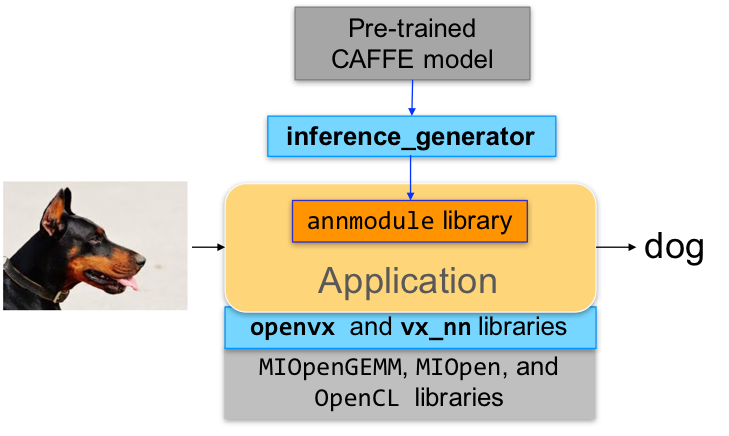
inference_generator : generate inference library from pre-trained CAFFE models
loom_shell : an interpreter to prototype 360 degree video stitching applications using a script
RunVX : command-line utility to execute OpenVX graph described in GDF text file
RunCL : command-line utility to build, execute, and debug OpenCL programs
If you’re interested in Neural Network Inference, start with the sample cloud inference application in apps folder.
Pre-requisites
CPU: SSE4.1 or above CPU, 64-bit
CMake 2.8 or newer download
Qt Creator for annInferenceApp
- protobuf for inference_generator
install libprotobuf-dev and protobuf-compiler needed for vx_nn
- OpenCV 3 (optional) download for vx_opencv
Set OpenCV_DIR environment variable to OpenCV/build folder
Pre-requisites setup script - MIVisionX-setup.py
Prerequisites for running the scripts
ubuntu 16.04/18.04
ROCm supported hardware
ROCm
MIVisionX-setup.py- This scipts builds all the prerequisites required by MIVisionX. The setup script creates a deps folder and installs all the prerequisites, this script only needs to be executed once. If -d option for directory is not given the script will install deps folder in ‘~/’ directory by default, else in the user specified folder.
usage:
python MIVisionX-setup.py -s [sudo password - required] -d [setup directory - optional (default:~/)] -m [MIOpen Version - optional (default:1.6.0)]
Build MIVisionX
Build using CMake on Linux (Ubuntu 16.04 64-bit) with ROCm
Install ROCm
- git clone, build and install other ROCm projects (using cmake and % make install) in the below order for vx_nn.
MIOpen – make sure to use -DMIOPEN_BACKEND=OpenCL option with cmake
install protobuf
install OpenCV
git clone this project using –recursive option so that correct branch of the deps project is cloned automatically.
- build and install (using cmake and % make install)
executables will be placed in bin folder
libraries will be placed in lib folder
the installer will copy all executables into /opt/rocm/mivisionx/bin and libraries into /opt/rocm/lib
the installer also copies all the OpenVX and module header files into /opt/rocm/mivisionx/include folder
add the installed library path to LD_LIBRARY_PATH environment variable (default /opt/rocm/mivisionx/lib)
add the installed executable path to PATH environment variable (default /opt/rocm/mivisionx/bin)
Build annInferenceApp using Qt Creator
build annInferenceApp.pro using Qt Creator
or use annInferenceApp.py for simple tests
Docker
MIVisionX provides developers with docker images for Ubuntu 16.04, Ubuntu 18.04, CentOS 7.5, & CentOS 7.6. Using docker images developers can quickly prototype and build applications without having to be locked into a single system setup or lose valuable time figuring out the dependencies of the underlying software.
MIVisionX Docker
Workflow
Step 1 - Install rocm-dkms
sudo apt update
sudo apt dist-upgrade
sudo apt install libnuma-dev
sudo reboot
wget -qO - http://repo.radeon.com/rocm/apt/debian/rocm.gpg.key | sudo apt-key add -
echo 'deb [arch=amd64] http://repo.radeon.com/rocm/apt/debian/ xenial main' | sudo tee /etc/apt/sources.list.d/rocm.list
sudo apt update
sudo apt install rocm-dkms
sudo reboot
Step 2 - Setup Docker
sudo apt-get install curl
sudo curl -fsSL https://download.docker.com/linux/ubuntu/gpg | sudo apt-key add -
sudo add-apt-repository "deb [arch=amd64] https://download.docker.com/linux/ubuntu $(lsb_release -cs) stable"
sudo apt-get update
apt-cache policy docker-ce
sudo apt-get install -y docker-ce
sudo systemctl status docker
Step 3 - Get Docker Image
sudo docker pull kiritigowda/mivisionx-ubuntu-16.04
Step 4 - Run the docker image
sudo docker run -it --device=/dev/kfd --device=/dev/dri --cap-add=SYS_RAWIO --device=/dev/mem --group-add video --network host kiritigowda/mivisionx-ubuntu-16.04

* Optional: Map localhost directory on the docker image
   * option to map the localhost directory with trained caffe models to be accessed on the docker image.
   * usage: -v {LOCAL_HOST_DIRECTORY_PATH}:{DOCKER_DIRECTORY_PATH}
    ::

     sudo docker run -it -v /home/:/root/hostDrive/ --device=/dev/kfd --device=/dev/dri --cap-add=SYS_RAWIO --device=/dev/mem --group-add video --network host kiritigowda/mivisionx-ubuntu-16.04
Release Notes
Supported Neural Net Layers
Layer name
Activation
Argmax
Batch Normalization
Concat
Convolution
Deconvolution
Fully Connected
Local Response Normalization (LRN)
Pooling
Scale
Slice
Softmax
Tensor Add
Tensor Convert Depth
Tensor Convert from Image
Tensor Convert to Image
Tensor Multiply
Tensor Subtract
Upsample Nearest Neighborhood
Known issues
ROCm - 1.8.151 performance degradation
Tested configurations
Linux: Ubuntu - 16.04/18.04 & CentOS - 7.5/7.6
ROCm: rocm-dkms - 1.9.307
rocm-cmake - github master:ac45c6e
MIOpenGEMM - 1.1.5
MIOpen - 1.6.0
Protobuf - V3.5.2
OpenCV - 3.3.0
Dependencies for all the above packages